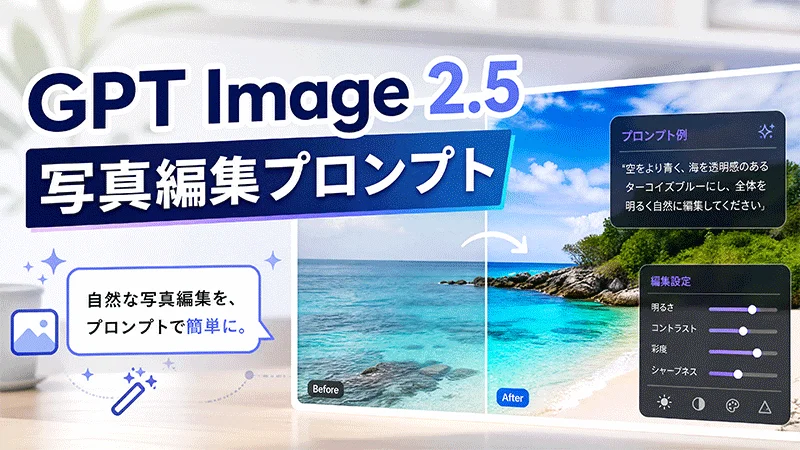
GPT Image 2.5が最近リリースされ、より精度の高い画像編集ができるようになったとされています。自然言語による指示で既存の写真を編集できますが、仕上がりを左右するのは、編集内容をどれだけ具体的に伝えられるかです。
この記事では、最新のGPT Image 2.5の画像編集プロンプトをはじめ、汎用的に使えるプロンプトの基本形、15種類の編集例、さらに手軽に使える代替ツールを活用した画像編集方法まで詳しく紹介します。
パート 1. GPT Image 2.5の画像編集でできること
GPT Image 2.5では、ChatGPT上で画像生成・編集機能がさらに強化されています。既存の画像をアップロードし、変更したい内容を自然言語で指示したり、特定の範囲を選択して編集したりできます。また、最初の結果を確認したうえで、追加の指示を出しながら仕上がりを調整することも可能です。
| GPT Image 2.5の主なアップデート | 画像編集でできること |
|---|---|
| より高精度な編集 | 特定のオブジェクトや範囲に対する細かな編集内容を指定しやすくなります。 |
| より鮮明な画像ディテール | 生成・編集した画像の細部まで、より鮮明に表現できます。 |
| マルチターン編集 | 最初から作り直すのではなく、生成済みの画像に追加指示を出して調整できます。 |
| 選択ツール | 編集したい特定の範囲を指定してから、編集を適用できます。 |
| 直接編集 | あらかじめ範囲を選択しなくても、編集したい内容を直接指示できます。 |
| コメント | 対応する編集ワークフローでは、追加の指示を伝える方法としてコメントも利用できます。 |
選択ツールは画像の一部分だけを編集したい場合に便利ですが、選択範囲が必ずしも完全に正確とは限りません。複雑な編集を行う場合は、選択範囲を指定したうえで具体的なプロンプトを入力すると、意図をより明確に伝えられます。
パート 2. GPT Image 2.5の画像編集プロンプトを効果的に書く方法
優れた GPT Image 2.5の画像編集プロンプト を作るには、「何を変更するのか」と「何をそのまま残すのか」を明確に分けて伝えることが重要です。
1 元の写真を具体的に説明する
写真の主な被写体、場所、構図、光の当たり方、重要な視覚的要素などを具体的に伝えます。編集内容を指示する前に元画像の情報を示すことで、AIが画像の状況を把握しやすくなります。
2 変更したい部分を明確に指定する
変更したい対象や人物、背景、色、その他の要素を具体的に指定しましょう。「もっと良くして」のような曖昧な指示は避け、どこをどのように変更したいのかを明確に伝えることがポイントです。
3 残したい要素を指定する
変更せずに維持したい要素も明記します。人物写真の場合は、顔の特徴や本人らしさ、ポーズ、表情、服装、肌の質感などを維持するように指定するとよいでしょう。
4 スタイルと制約条件を加える
希望するビジュアルスタイル、ライティング、リアルさ、色、比率などの条件を具体的に指定します。同時に、重要なディテールを維持することや、意図しない変更を避けることも明記すると、仕上がりをコントロールしやすくなります。
5 汎用的に使えるプロンプトの基本形
さまざまなGPT Image 2.5の画像編集プロンプトに、次の構成を活用できます。
Edit [specific element] in the uploaded photo by [requested change]. Keep [important elements] unchanged. Apply [visual style, lighting, or color] while preserving [composition, details, or realism]. Avoid [unwanted changes].
この形式を使えば、複雑になりすぎることなく、具体的なGPT Image 2.5の画像編集プロンプトを作成できます。
パート 3. GPT Image 2.5の画像編集プロンプト15選
ここでは、不要なオブジェクトの削除、背景の変更、複数の写真の合成、複数回にわたる編集など、よく使われる画像編集に対応したAI画像編集プロンプトを紹介します。
不要なオブジェクトを削除する
オブジェクトの削除は、人物写真や旅行写真、商品画像、背景に多くのものが写り込んだ写真などの整理に役立ちます。削除したい要素を具体的に指定し、その周囲の背景を自然に補完するようAIに指示しましょう。

Remove all unnecessary people behind the main subject. Keep the subject, clothing, face, pose, lighting, and composition unchanged. Naturally reconstruct the buildings, pavement, shadows, and background details so the edited area looks like it was originally photographed without those people.
Remove the boxes, cables, loose objects, and visual clutter from this room. Preserve the furniture, walls, windows, flooring, lighting, and architecture. Reconstruct the cleared areas naturally with matching textures and shadows while keeping the original camera perspective.
Remove the unwanted text-like mark from the lower-right corner. Reconstruct the background naturally underneath it and match the surrounding colors, texture, lighting, and detail. Do not change the subject or any other part of the photograph.
写真内のオブジェクトを置き換える
オブジェクトの置き換えでは、周囲の構図を維持しながら特定の要素だけを変更できます。商品イメージの作成やインテリアの編集、クリエイティブな画像加工などに活用できます。
Replace the smartphone in the person’s hand with a modern premium black smartphone. Preserve the hand position, fingers, reflections, lighting, proportions, background, and camera angle. Make the replacement realistic and correctly scaled to the original device.
Replace the old table lamp with a modern minimalist white lamp. Keep the table, wall, room layout, shadows, and warm lighting unchanged. Match the new lamp’s perspective, scale, reflections, and shadows to the original scene.
写真内の人物を編集する
人物写真を編集する場合は、変更したい部分を具体的に指定するとともに、人物の本人らしさや顔の特徴を維持することを明示すると、意図した結果を得やすくなります。
Change the person’s hairstyle to shoulder-length wavy hair with natural volume and soft layers. Preserve the exact facial identity, face shape, skin tone, expression, clothing, pose, and background. Make the hairstyle follow the original lighting and perspective realistically.
Replace the person’s shirt with a tailored dark navy blazer and white shirt. Keep the face, hairstyle, body proportions, pose, hands, background, and lighting unchanged. Make the fabric folds, shadows, and fit look naturally photographed.
写真の背景を変更する
背景を置き換えることで、メインの被写体をそのままに、写真全体のシーンを変更できます。より自然な仕上がりにするには、ライティングや遠近感についても具体的に指示しましょう。
Replace the current background with a clean luxury photography studio featuring a neutral gray backdrop. Keep the subject, clothing, face, pose, and proportions unchanged. Match the studio lighting, contact shadows, depth of field, and perspective to the original photograph.
Replace the background with a realistic European street during golden hour. Preserve the person’s identity, clothing, hairstyle, pose, and proportions. Match the warm sunlight, shadows, perspective, and depth of field, so the subject naturally belongs in the new environment.
写真のスタイルを変更する
スタイル変換を使えば、一般的な写真を映画のワンシーンのような雰囲気や、ヴィンテージ、エディトリアル風の表現に仕上げながら、元の被写体を維持できます。
Transform this photo into a cinematic film still with natural contrast, subtle color grading, soft highlights, realistic shadows, shallow depth of field, and professional movie lighting. Preserve the original subjects, composition, facial identity, clothing, and important environmental details.
Convert this photograph into an authentic vintage 35mm film image. Add subtle grain, slightly faded colors, warm analog tones, and gentle contrast. Preserve the original composition, facial features, objects, and lighting direction. Avoid excessive filters or artificial textures.
複数の写真を自然に合成する
複数の写真を合成する際は、被写体の大きさ、ライティング、遠近感、色味をそろえることが重要です。別々の写真に写っている被写体をどのように組み合わせたいのか、AIに具体的に伝えましょう。
Combine the two uploaded portraits into one natural group photograph. Position both people beside each other with realistic proportions and matching eye level. Match their lighting, skin tones, shadows, perspective, and background so the result looks like one original photograph.
画像内のテキストを編集する
AI画像編集では、文字を含む画像の内容も変更できます。既存のデザインを維持しながら、どの文字をどの内容に置き換えるのかを具体的に指定しましょう。
Replace the headline “WEEKEND SALE” with “SUMMER SALE.” Keep the same font style, size, alignment, color, spacing, shadows, background, and overall design. Do not change any other text or visual element.
Translate all visible English text into Spanish while preserving the original typography, font hierarchy, layout, colors, alignment, and graphic style. Keep logos, brand names, and non-translatable elements unchanged.
マルチターン編集
最初の結果がイメージに近いものの、さらに調整したい場合は、マルチターン編集が便利です。画像を最初から作り直すのではなく、変更したい部分だけを追加で指示して仕上げていきます。
Replace the background of this portrait with a modern luxury hotel lobby. Keep the person, clothing, pose, facial identity, and proportions unchanged. Use warm cinematic lighting and realistic depth of field.
Keep the current composition, background, lighting, and the person’s appearance unchanged. Replace the man’s current outfit with a refined, well-tailored dark suit, a crisp dress shirt, and a subtle tie. Keep his face, hairstyle, body proportions, pose, hand position, and expression exactly the same.
Keep the current outfit, background, pose, and facial features unchanged. Improve the lighting to create a soft, warm cinematic look with natural highlights and subtle shadows. Maintain realistic skin tones, suit details, and overall image balance.
パート 4. GPT Image 2.5の画像編集プロンプトを使う方法
基本的な画像編集には、編集したい画像をアップロードし、具体的な指示を入力します。生成された結果を確認したうえで、必要に応じて追加の指示を出し、仕上がりを調整できます。
- ChatGPTを開き、編集したい写真をアップロードします。
- 変更したい内容を具体的に説明し、重要な要素を維持するための指示も加えます。
- 生成結果を確認し、修正したい部分があれば追加のプロンプトを入力します。特定の範囲を編集したい場合は、対象箇所をできるだけ具体的に指定しましょう。
- 仕上がりを確認したら編集した画像を保存し、必要に応じて共有・投稿できます。
パート 5. AI画像編集に特化したGPT Image 2.5の代替ツール
GPT Image 2.5は会話形式で手軽に画像を編集できる一方、より具体的な画像編集機能を使いたい場合は、専用の編集ワークフローが役立ちます。HitPaw EdimakorはAI画像編集機能に加えて幅広いクリエイティブ機能を搭載しており、画像を編集した後、そのまま動画などのコンテンツ制作を続けたいユーザーにも適しています。
EdimakorのAI画像編集機能
- AI画像高画質化:画像の鮮明さや全体的な画質を向上させます。
- AI背景編集:プロンプトや参照画像を使って、背景を置き換えたり生成したりできます。
- AIインペイント:編集したい範囲を選択し、変更内容をプロンプトで指定できます。
- AI画像スタイル変換:プロンプトを入力することなく、ワンクリックで画像をアニメ風や3D風などに変換できます。


HitPaw EdimakorでAI画像編集を行う方法
GPT Image 2.5で生成した画像は、静止画として活用するだけでなく、動画コンテンツへと発展させることで表現の幅をさらに広げることができます。
特にSNSや広告分野では、画像単体よりも「動きのあるビジュアル」の方が高いエンゲージメントを得やすく、AI画像の活用方法として注目されています。
そこでおすすめなのが、画像生成に優れた HitPaw Edimakor です。HitPaw Edimakorを使うと、GPT Image 2.5・ Nano Banana2 など生成AIで生成した画像を数クリックで動画化することができます。
Seedance 2.5やKling 3.0などの最新動画生成AIモデルを活用することで、ポスターやバナーのような画像を自然な動きのあるCM風コンテンツに仕上げることも可能です。特にテキスト入りの画像でも構造を維持しやすく、広告制作との相性が高い点も魅力です。
さらに生成した動画はGIF形式などで共有やプレビューすることも可能です。
HitPaw Edimakorなら、プロンプト作成が苦手な場合でも、あらかじめ用意されたテンプレートを使えば、専門知識がなくても簡単に動画コンテンツを作成できます。日本語環境にも対応しており、AI画像をそのまま動画に展開したい方に最適です。
GPT Image 2.5の画像編集に関するよくある質問
A1: はい。GPT Image 2.5には特定の範囲を指定できる選択ツールがあります。また、プロンプトで編集したい場所を直接指定することもできます。
A2: はい。人物やオブジェクト、背景の不要なものなどを削除できます。消したい対象を具体的に指定し、その周囲の部分を自然に補完するよう指示するとよいでしょう。
A3: 生成にかかる時間は、リクエストの内容やシステムの状況によって異なります。OpenAIによると、画像生成には数分かかる場合があります。
A4: はい。希望する背景を文章で指定したり、編集する範囲を選択して具体的な指示を入力したりできます。用途に応じて、背景を透明にするよう指定することも可能です。
まとめ
効果的な GPT Image 2.5の画像編集 は、具体的で分かりやすい指示から始まります。この記事で紹介した15種類のプロンプトでは、不要なオブジェクトの削除やマルチターン編集など、さまざまな画像編集に対応できます。背景編集やオブジェクト除去、インペイント、画像の高画質化などをまとめて使いたい場合は、 HitPaw Edimakor も活用してみてください。
コメントで参加しよう!
HitPawの記事にレビューを書いてみましょう!